
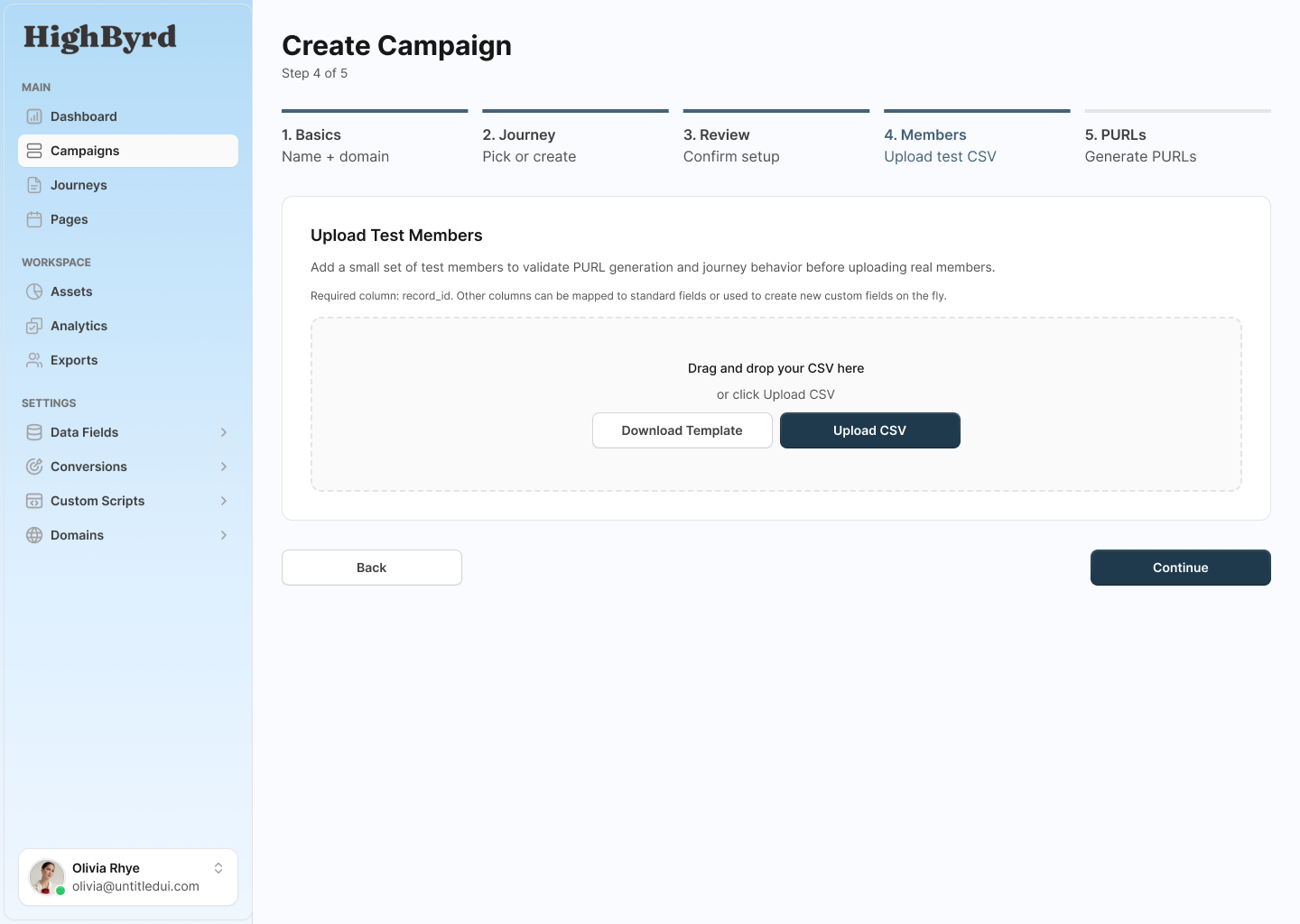
Upload your list
Upload a CSV of recipients. The file streams to secure storage and a background job does the heavy lifting, so a large list does not block your screen.
CSV in, no reformatting
Bring the CSV you already have. You map your columns to HighByrd fields rather than reshaping the file to match a template.
Streams to secure storage
The file uploads directly to secure storage through a presigned URL, so it does not pass through a form that times out on large lists.
Parsed and validated in the background
A background job parses and validates the file after upload. You can keep working while it runs, and large lists are handled the same way as small ones.
Map columns to fields
Map your CSV columns to standard fields, and to custom fields you define once and reuse across campaigns.
Standard fields
Map columns to record id, contact id, email, first name, last name, and business name. These are the fields HighByrd recognizes out of the box.
Org-level custom fields
Define your own fields once at the organization level and reuse them across every campaign, instead of redefining them each time you import.
Typed fields
Each custom field has a type: string, number, date, enum with allowed values, or boolean. The type is enforced when the file is validated.
PII flagging
Flag a field as PII so it is handled as personal data. The flag travels with the field wherever it is used.
Per-campaign control
Per campaign you choose which fields to use and whether each one is required, without changing the fields themselves.
Add or replace members
Two upload modes decide what happens to the members already on a campaign when you import.
Add
Append the recipients in your file to the existing members. Use this when you are growing a list you have already started.
Replace
Clear the current members and re-upload from scratch. Use this when the file is your new source of truth for the campaign.
You choose per upload
The mode is set at upload time, so the same campaign can grow with add or be reset with replace as your list changes.
Test members and launch readiness
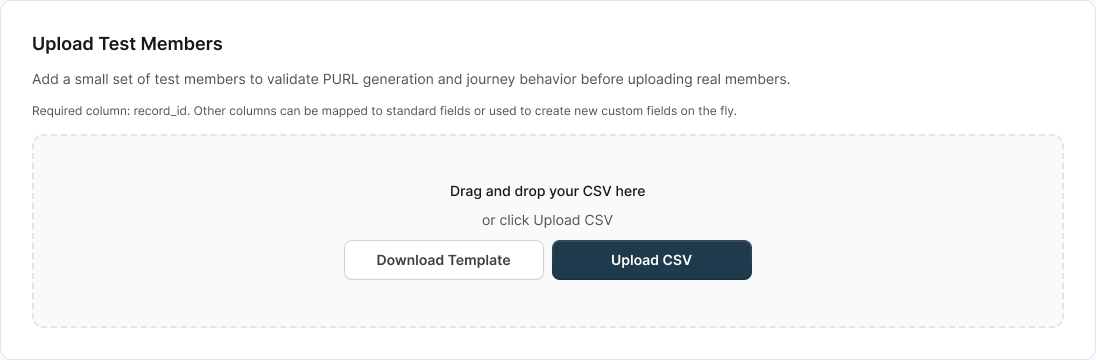
Upload test recipients separately, fix any bad rows, and confirm the campaign is ready before it goes live.
Test members
Upload test recipients separately, flagged as test. They are purged when the campaign goes live, so they never reach a real audience.
Per-row error log
If a row fails validation, the error log reports the line number and the message, so you can find and fix the exact bad rows.
Readiness checks
Before launch HighByrd checks that a domain is assigned, a journey is selected, there is at least one real member, and every journey step is configured.
Why it holds up
Why the data layer holds up
The audience model is built to handle real lists, with fields you define once and validation that runs before anything goes out.
Fields defined once, reused everywhere
Custom fields live at the organization level, so you define them a single time and map to them on every campaign instead of rebuilding your schema per import.
Typed and PII-aware, not free text
Every custom field has a type and can be flagged as PII, so values are validated as strings, numbers, dates, enums, or booleans rather than accepted blindly.
Async upload that handles large lists
The file streams to secure storage and is parsed and validated by a background job, so a large list imports without blocking the page or timing out.
Bring your list as it is.
Upload your CSV, map your columns once, and reuse your fields on every campaign. No reformatting, no code.
Audience & Data FAQ
Short answers to common questions about audience & data in HighByrd.
How do I upload my audience to HighByrd?
You upload your audience as a CSV. The file streams directly to secure storage through a presigned URL, and a background job parses and validates it, so even large lists import without timing out. You then map your CSV columns to standard fields and to any custom fields you have defined.
What standard fields can I map my CSV columns to?
HighByrd recognizes six standard fields out of the box: record id, contact id, email, first name, last name, and business name. You map the matching columns in your CSV to these fields during import. Any column that is not a standard field can be mapped to a custom field you define for your organization.
What are custom fields and how do I reuse them across campaigns?
Custom fields are fields you define once at the organization level and map to on every campaign, so you do not rebuild your schema for each import. Each custom field has a type, either string, number, date, enum with allowed values, or boolean, and can be flagged as PII so it is handled as personal data. Per campaign you choose which custom fields to use and whether each one is required, without changing the fields themselves.
What is the difference between add and replace when I upload?
Add appends the recipients in your file to the members already on the campaign, which is what you want when you are growing a list you have already started. Replace clears the current members and re-uploads from scratch, which is what you want when the file is your new source of truth. The mode is set per upload, so the same campaign can grow with add or be reset with replace as your list changes.
How do I test a campaign without mailing real recipients?
You upload test recipients separately, flagged as test members. They let you check a campaign without involving your real audience, and they are purged automatically when the campaign goes live, so they never reach anyone. If any row fails validation, the error log reports the line number and the message so you can fix the exact bad rows first.
What does HighByrd check before a campaign can go live?
Before launch HighByrd runs readiness checks that confirm a domain is assigned, a journey is selected, there is at least one real member, and every journey step is configured. Test members are purged at the same time, so only real recipients remain. If a check is not met, the campaign cannot go live until you resolve it.